Batteries Included: Powering AI DBA Workbench Locally with llama.cpp
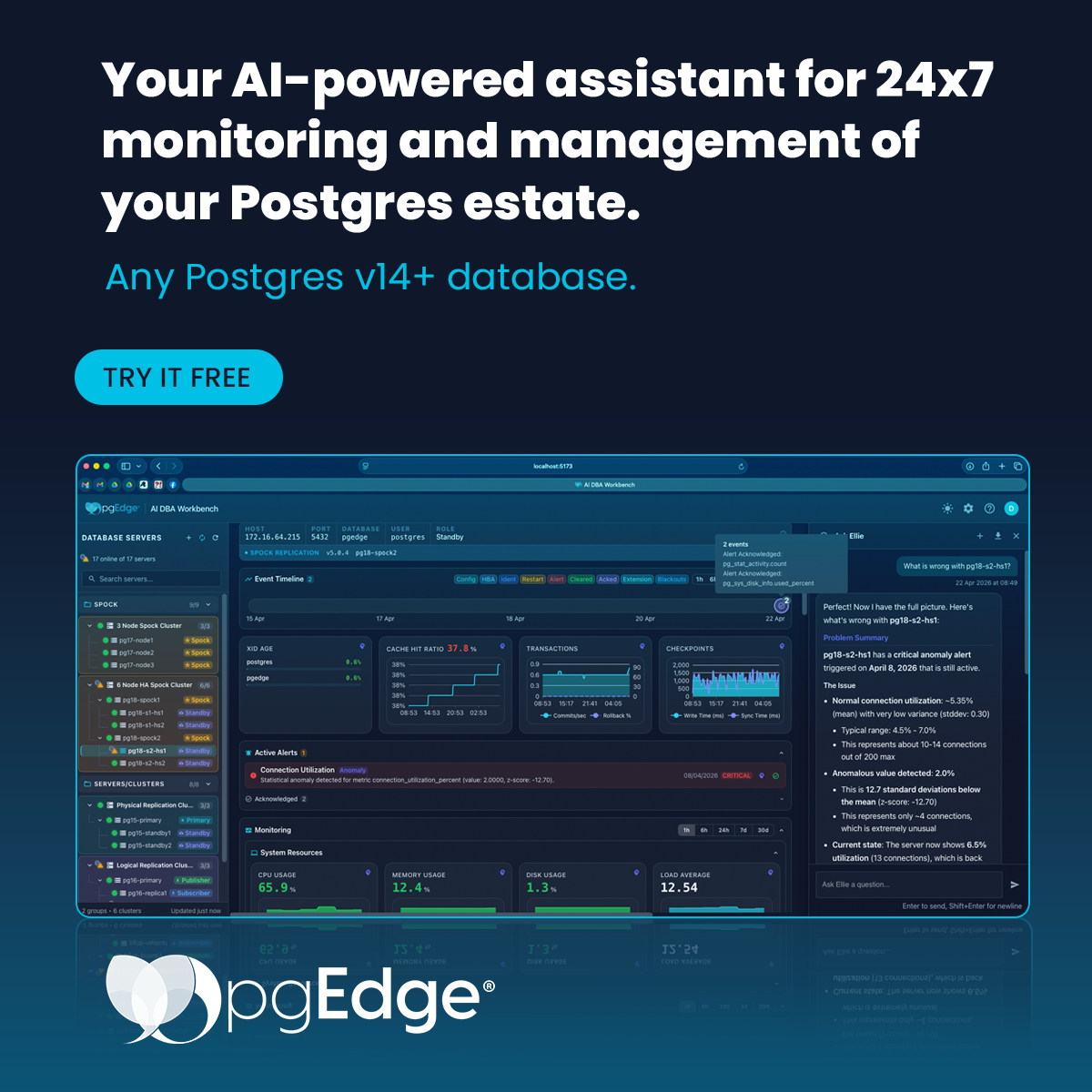
We at pgEdge are incredibly proud of our work producing the AI DBA Workbench. It's a monitoring and alerting dashboard with optional AI-driven DBA functionality. But that's the rub, isn't it? The optional AI features are the reason anyone would use it in the first place. It's in the name!
It's not simply that AI subscriptions are necessarily expensive, though they can be. There's an additional component of chain-of-custody. Some compliance rules will never allow interacting with an external AI service, or require air-gapped deployments that make such a thing impossible. What then?
Great question! The answer can come in a lot of forms, but this time around, let's use llama.cpp. It's a very popular server for running local models. While these are usually not as advanced as a frontier model from OpenAI, Anthropic, or Google, they still offer plenty of value.
Bucket'o'Parts
One thing to understand about the AI DBA Workbench is that it consists of several components, most of which are services. Each one of them requires proper installation, configuration, and automation. The easiest way to handle all of these is, of course, by using Docker. The ai-dba-workbench GitHub repository happens to have a few sample compose files for most of this. And here's the minimum list of services the default file launches:
A Postgres database. The workbench uses this for its own data, but it's also the source of the database we'll be interacting with in the example workflow.
A collector. This actually gathers data and metadata from the systems the workbench monitors.
A server. The workbench server handles API calls from the client, interacts with the configured model, and generally acts as the primary focal point of the collection.
An Alerter. An independent service that regularly examines the collected forensics and acts on configured warning and critical thresholds.
A client. This is the web service an admin would actually interact with.
That's a lot, isn't it? To make this more fun, it would also make sense to have some simulated workload. We can use pgEdge loadgen for that. We also need the container for llama.cpp itself. That makes a total constellation of seven fully operational containers. While pgEdge provides images for most of these, some will need a bit of customization for local AIs.
We better get started.
Whither Postgres?
To begin with the "star" of our show, we need the Postgres service. That's the top service in the compose file:
  postgres:
    image: postgres:18
    environment:
      POSTGRES_USER: postgres
      POSTGRES_PASSWORD: ${POSTGRES_PASSWORD:?POSTGRES_PASSWORD must be set}
      POSTGRES_DB: ai_workbench
    volumes:
      - pgdata:/var/lib/postgresql/18/docker
    healthcheck:
      test: ["CMD-SHELL", "pg_isready -U postgres"]
      interval: 5s
      timeout: 5s
      retries: 5
    ports:
      - "${POSTGRES_PORT:-5432}:5432"
    command:
      - postgres
      - -c
      - shared_preload_libraries=pg_stat_statements
The compose provided in the repo uses a pgEdge image, but I want to prove that this entire stack also works with vanilla Postgres. It totally does! The only minor tweak we need to make is to ensure shared_preload_libraries includes pg_stat_statements. The workbench uses that to find problematic queries for diagnostics and analysis. LLMs can do a lot with a query, query plan, statistics, and server state.
Whistle While You Work
The next thing we'll need is the activity driver. It's the least critical component but requires a bit of actual work on our part. Grab the source to begin:
git clone git@github.com:pgEdge/pgedge-loadgen.git
cd pgedge-loadgen
Unfortunately, the loadgen repo doesn't provide a Dockerfile for building an image for this kind of use case. Instead, use this one:
FROM golang:1.25-bookworm

COPY . /build

WORKDIR /build
RUN make install && chmod a+x /build/entrypoint.sh

ENTRYPOINT ["/build/entrypoint.sh"]
Not much there, right? All it does is build the image from the loadgen repo itself. But what about the entrypoint.sh file? Its job is to bootstrap the Postgres database with a warehouse and then direct traffic at that database. That's why it's a script instead of a single command. Here's what it looks like:
#!/bin/bash

DSN="postgres://postgres:${POSTGRES_PASSWORD}@postgres:5432/postgres"
echo "Connecting to ${DSN}"

if [ ! -f /status/init ]; then
  pgedge-loadgen init --app wholesale --size 5GB --connection ${DSN}
  touch /status/init
fi

pgedge-loadgen run --app wholesale --connections 10 \
  --profile local-office --connection $DSN
All it does is create a wholesale type of benchmark as part of the init, and then simulates a local workload with ten clients. Feel free to adjust any of the parameters, or swap them with environment variables passed along from the compose file.
Then just build with:
docker build -t pgedge-loadgen:latest .Once that completes, we'll need this block in the Docker compose file so it starts with the rest of the stack:
loadgen:
    image: pgedge-loadgen:latest
    depends_on:
      postgres:
        condition: service_healthy
    environment:
      POSTGRES_USER: postgres
      POSTGRES_PASSWORD: ${POSTGRES_PASSWORD:?POSTGRES_PASSWORD must be set}
    volumes:
      - loadgen:/status
    restart: unless-stopped
The cool thing about this is that we'll see simulated traffic so long as the stack of services is running. We don't need to remember and launch some separate process.
No Drama, Just Llama
Getting llama.cpp up and running is... shockingly easy. They have an entire image inventory for various use cases. Just pick an image and go! I happen to have an NVidia card, so I went with the server-cuda13 build. Your mileage, of course, may vary.
With image selection out of the way, how should it launch? This is a good default for the entry in our compose file:
llama-server:
    image: ghcr.io/ggml-org/llama.cpp:server-cuda13
    runtime: nvidia
    ports:
      - "${LLM_SERVER_PORT:-8000}:8080"
    environment:
      NVIDIA_VISIBLE_DEVICES: all
    volumes:
      - ${HOME}/models:/models
    command: >
      --port 8080
      --host 0.0.0.0
      --models-preset /models/preset.ini
      --models-max 1
      --sleep-idle-seconds 1800
      --log-verbosity 5
      --jinja
    restart: unless-stopped
In this case, we only need to mount the model directory into /models and provide a preset file so it knows how each model should operate. And we need that because the service will provide both embedding and model capabilities rather than just serve a single model.
And which models? For the reasoning model, it turns out that Qwen3.8-27B is the current fan favorite, and it works well with the workbench when properly configured. Embeddings are a complicated story, but it essentially boils down to this: use nomic-embed-text.
Let's keep it simple with this annotated preset.ini file:
[*]
parallel = 1        # Only one model at a time
kv-unified = 1      # Unified cache for reduced memory usage
batch-size = 2048   # Prompt processing optimization
ubatch-size = 512   # Prompt processing optimization
flash-attn = on     # K/V cache optimization

[text-embedding-3-small]
model = /models/nomic-embed-text-v1.5.Q8_0.gguf
embedding = true    # Mark this as an embedding

# These settings are tuned for a 24GB GPU; salt to taste!
[demo-model]
model = /models/Qwen3.8-27B-Q4_K_M.gguf
ctx-size = 131072   # 128K token context
ngl = 99            # All model layers in VRAM
ctk = q4_0          # Fastest, though mildly lossy key cache
ctv = q4_0          # Fastest, though mildly lossy value cache
temp = 0.7          # Recommended settings for Qwen3.8
top-p = 0.95
top-k = 20
min-p = 0.0
presence-penalty = 1.5
repeat-penalty = 1.0
spec-type = draft-mtp    # Multi-token prediction drafting head for speed
chat-template-kwargs = {"enable_thinking":false} # No thinking!
Why disable thinking? Reasoning models can spend a lot of tokens ruminating. The workbench has a couple spots where it provides a quick 4-sentence summary of the cluster or current server, and it sets a strict token budget to provide it. Thinking models can easily consume the entire budget just figuring out what to say. So for local models, it's best to simply turn that off.
You may also notice that "nomic-embed-text" is named "text-embedding-3-small" in this preset. That's because the workbench does model pre-validation for supported providers, and OpenAI only allows certain embedding models. Since we'll be using llama.cpp's OpenAI compatibility for API calls, that means we need to trick the workbench into thinking that's the embedding it's using. We have a request to fix that, so that workaround may not be necessary forever.
The embedding model is not optional here. It's how we interact with the knowledge base, a pre-computed database of embeddings comprising documentation for Postgres, pgEdge products, and several common Postgres extensions. Local models have orders of magnitude fewer training parameters and it manifests as shallow knowledge pools. The knowledge base replaces that ignorance with Postgres expertise.
A Wise Teacher
Speaking of the knowledge base, we need one in our server image. The default image doesn't include this because it's actually fairly large, and also comes in several formats customized to the model provider. But again, extending Docker images is easy, so here's a Dockerfile for a new server image:
FROM ghcr.io/pgedge/ai-dba-server:1.0

USER root

RUN apt -y update && \
    apt -y install gnupg2 curl lsb-release && \
    curl -sSL https://apt.pgedge.com/repodeb/pgedge-release_latest_all.deb -o /tmp/pgedge-release.deb && \
    dpkg -i /tmp/pgedge-release.deb && \
    apt -y install pgedge-ai-kb-ollama-nomic-embed-text && \
    rm -f /tmp/pgedge-release.deb && \
    rm -rf /var/lib/apt/lists/*

USER appuser
That's Greek for "Start with the base AI DBA Workbench server image and add the nomic-embed-text package from the pgEdge repo."
Then we just build with:
docker build -t ai-dba-server-with-kb:latest -f server-kb-Dockerfile .Once the build completes, the smarter server image should be available for the compose file:
server:
    image: ai-dba-server-with-kb:latest
    depends_on:
      postgres:
        condition: service_healthy
      llama-server:
        condition: service_started
    volumes:
      - ./docker/config/ai-dba-server.yaml:/etc/pgedge/ai-dba-server.yaml:ro
      - ./docker/secret/ai-dba.secret:/etc/pgedge/ai-dba.secret:ro
      - server-data:/data
    extra_hosts:
      - "host.docker.internal:host-gateway"
    ports:
      - "${SERVER_PORT:-8080}:8080"
    restart: unless-stopped
This piece depends both on Postgres and the model server. We could probably get away without making the latter explicit, but we may as well.
One more down, three to go.
And The Rest
Thankfully, "three to go" just means defaults for everything else. Hooray! So here's the remainder of the Docker compose file:
collector:
    image: ghcr.io/pgedge/ai-dba-collector:1.0
    depends_on:
      postgres:
        condition: service_healthy
    volumes:
      - ./docker/config/ai-dba-collector.yaml:/etc/pgedge/ai-dba-collector.yaml:ro
      - ./docker/secret/ai-dba.secret:/etc/pgedge/ai-dba.secret:ro
      - ./docker/secret/pg-password:/etc/pgedge/pg-password:ro
    init: true
    stop_grace_period: 30s
    restart: unless-stopped

  alerter:
    image: ghcr.io/pgedge/ai-dba-alerter:1.0
    depends_on:
      postgres:
        condition: service_healthy
    volumes:
      - ./docker/config/ai-dba-alerter.yaml:/etc/pgedge/ai-dba-alerter.yaml:ro
      - ./docker/secret/ai-dba.secret:/etc/pgedge/ai-dba.secret:ro
      - ./docker/secret/pg-password:/etc/pgedge/pg-password:ro
    restart: unless-stopped

  client:
    image: ghcr.io/pgedge/ai-dba-client:1.0
    depends_on:
      - server
    ports:
      - "${CLIENT_PORT:-3000}:8080"
    restart: unless-stopped
That's the collector, alerter, and client, all using the default pgEdge images with no other changes. The full docker-compose.yml should look something like this:
services:
  postgres: ...
  loadgen: ...
  llama-server: ...
  server: ...
  collector: ...
  alerter: ...
  client: ...

volumes:
  pgdata:
  server-data:
  loadgen:
The volumes are for Postgres, the workbench server's own data requirements, and the "init" status for the loadgen image so it knows the demo database is bootstrapped and ready for a workload. There is some remaining configuration before launch, and we can handle that next.
Rules of the Road
It's best to snag the ai-dba-workbench repo for default configurations that will help make this a lot easier:
git clone git@github.com:pgEdge/ai-dba-workbench.git
cd ai-dba-workbench
There are only a few configuration changes necessary to get things running. None of the provided config files contain entries for any AI elements, so we can generally just append that to the end of each.
For the server in docker/config/ai-dba-server.yaml append:
embedding:
  enabled: true
  provider: "openai"
  model: "text-embedding-3-small"
  openai_base_url: "http://llama-server:8080/v1"

llm:
  provider: "openai"
  model: "demo-model"
  openai_base_url: "http://llama-server:8080/v1"
  max_tokens: 131072
  temperature: 0.7
  max_iterations: 50
  compact_tool_descriptions: "auto"

knowledgebase:
  enabled: true
  embedding_provider: "openai"
  embedding_model: "text-embedding-3-small"
  embedding_openai_base_url: "http://llama-server:8080/v1"
  database_path: "/usr/share/pgedge/pgedge-ai-kb/kb-ollama-nomic-embed-text.db"
This sets the provider to "openai", telling the workbench to communicate with our llama.cpp service using the OpenAI protocol available in most model servers. It sets the embedding model to our masked nomic-embed-text, and sets all URLs to target the llama-server service the stack should launch.
The max_iterations parameter essentially prevents thought loops, while temperature ensures no workbench default sets it artificially low. Some local models can start misbehaving at low temperatures, so it's best to be sure. We also set the max token context so the workbench knows not to overload the model context when building prompts.
Much of this also applies to the alerter. Append this to the end of docker/config/ai-dba-alerter.yaml:
llm:
  reasoning_provider: openai
  openai:
    base_url: http://llama-server:8080/v1
    reasoning_model: demo-model
    embedding_model: text-embedding-3-small
Believe it or not, that's actually everything. It should now be possible to launch the entire stack.
Get This Party Started
Docker compose files are only one part of launching a compose service. We also need an environment file to pass along. You probably noticed several environment variables referenced in the compose extracts, so this is where we'd use them. In this case, we also want to set a Postgres password so all the various components can log into Postgres. This password also doubles as the web client password for the purposes of this demo.
We can do both by defining an export and a .env file for convenience:
export POSTGRES_PASSWORD=1safePassword!

cat<<EOF>.env
POSTGRES_PASSWORD=${POSTGRES_PASSWORD}
POSTGRES_PORT=5432
SERVER_PORT=8080
CLIENT_PORT=3000
LLM_SERVER_PORT=8000
EOF
Next we need to create a shared server secret for internal workbench communication, a password file, and replace the default "postgres" password in the server config with the same information:
mkdir -p docker/secret

openssl rand -base64 32 > docker/secret/ai-dba.secret
echo "${POSTGRES_PASSWORD}" > docker/secret/pg-password

sed -i "s/password: postgres/password: ${POSTGRES_PASSWORD}/" \
  docker/config/ai-dba-server.yaml
That should be enough to actually start the stack of services:
docker compose up -d

docker compose ps
It will probably take a while to start everything. Once everything is online, there are a few more steps before we can log into the web interface.
Start by adding a client user to the workbench:
echo "${POSTGRES_PASSWORD}" > /tmp/pw.txt

docker compose cp /tmp/pw.txt server:/tmp/pw.txt

docker compose exec \
    server /usr/local/bin/ai-dba-server \
    -config /etc/pgedge/ai-dba-server.yaml \
    -add-user -username admin \
    -password-file /tmp/pw.txt \
    -full-name "Admin User" \
    -email "admin@example.com"

docker compose exec \
    server /usr/local/bin/ai-dba-server \
    -config /etc/pgedge/ai-dba-server.yaml \
    -set-superuser -username admin

docker compose exec -u root server rm -f /tmp/pw.txt

rm /tmp/pw.txt
That will add the admin user, set the same password we defined earlier, and tag it as a superuser account. That means we can access everything upon logging in.
Finally, install the pg_stat_statements extension in the ai_workbench database used by the workbench:
docker compose exec -u postgres postgres psql -c "CREATE EXTENSION pg_stat_statements" ai_workbenchThat activates the pg_stat_statements extension in the one database that matters from the perspective of the workbench. Once that's done, it's time to log in and explore!
Local Workbench in Action
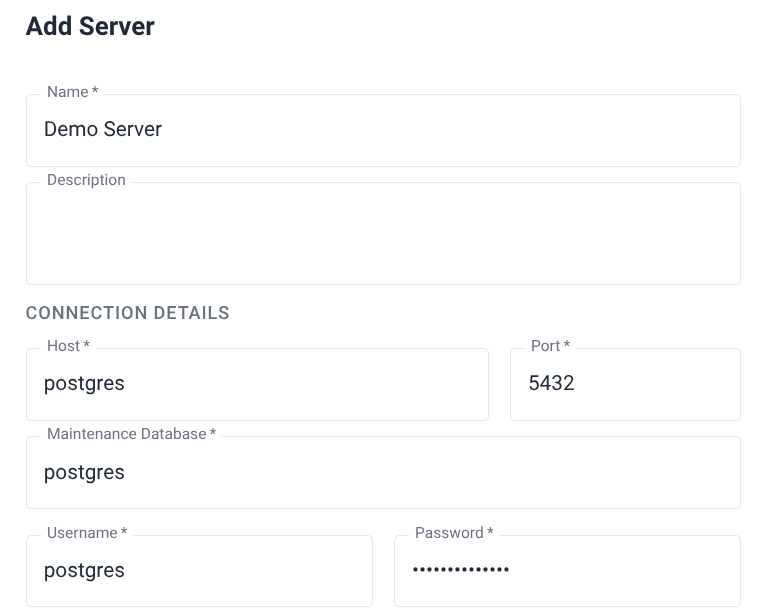
Our default settings should have the server running on localhost at port 3000. So direct a browser there, specify the admin/password information we set up earlier, and log in. Once inside, we need to make an entry so the workbench will start monitoring our "postgres" database. Click the "+" next to Database Servers and enter "Demo Server" to follow along.
 Once we've done that, one of the first things that should appear is the AI overview. It'll show up in the middle of the right pane and provide a short paragraph about the state of all managed clusters:
 This is the first clue that the AI integration is actually working properly. If the summary is blank, it could be that one of the workbench server settings are incorrect or the model is misbehaving, which local models are more likely to do. Either way, if we then click on "Demo Server" we should be presented with another one of these summaries, but only for that specific system:
 While clicking around the interface, you may notice the Ellie icon:
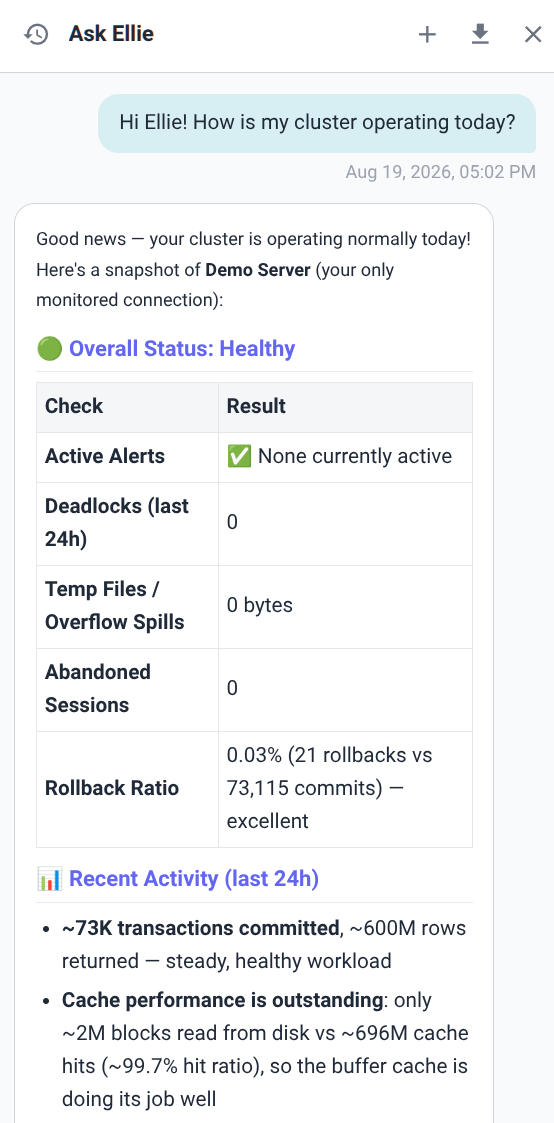
 Ellie is the pgEdge DBA agent we include as part of the workbench client. She has full access to everything the workbench does; all of the statistics, tables, alerts, query snapshots, you name it. Here I am requesting the status of the cluster:
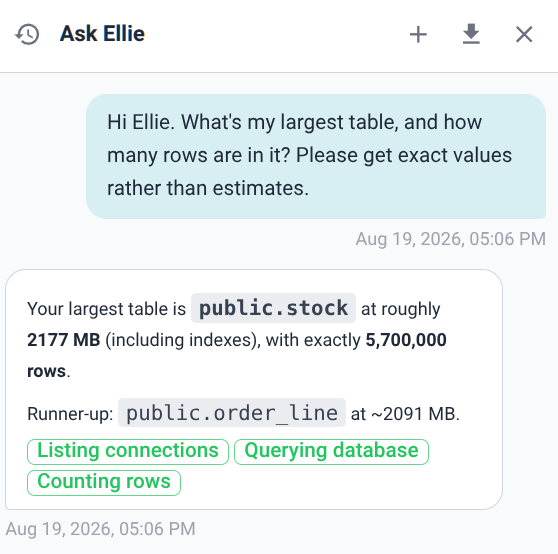
 And it's possible to ask about a specific server too. I asked this while viewing the Demo Server entry:
 This kind of behavior should work everywhere. Clicking on a query in "Top Queries" will bring up the query plan, call metrics, statistics, and of course an AI overview. In fact, anywhere you see this icon: , the workbench will send all relevant information to the configured model for an in-depth analysis, including any potential fixes, if applicable.
And just to cap everything off, here's what that looks like when we check the analysis for the Demo server after it's been running unattended for a while:
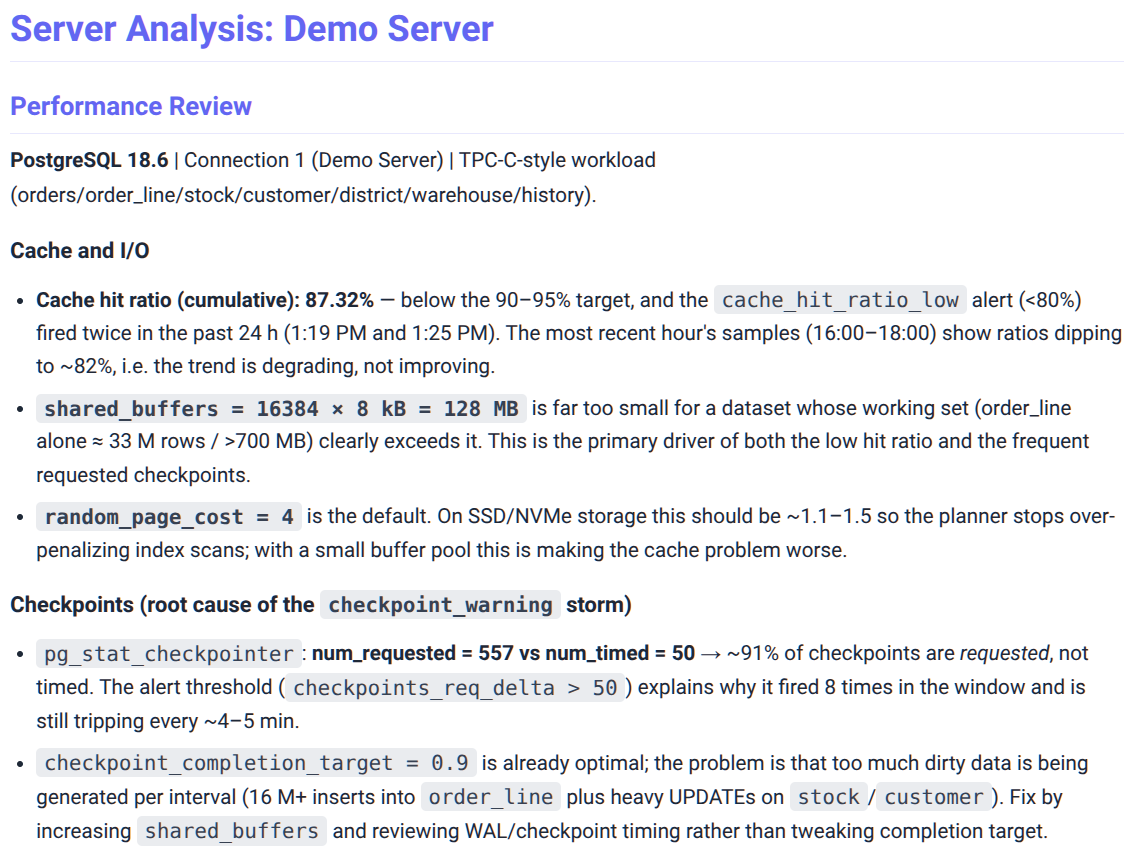 It actually goes on much longer than this, but hopefully you can see that the review is actually spot on. The wholesale workload is a TPC-C type benchmark with a 5GB base size. It's actually fairly busy with ten clients, and that's translating to frequent forced checkpoints. All that activity is also overloading the default shared buffers on this toy instance, which is showing up as a lower cache hit ratio. It even caught the fact that
 random_page_cost is set too high based on stats showing frequent sequential scans on tables with a primary key, but low total row counts.
It's not perfect, but consider the alternative without a full-time Postgres DBA on staff. All of that from a model that runs on a consumer-grade GPU. Not bad!
Looking Back
Hopefully I've made my point. This entire demonstration utilizes fully open source software. The entire AI DBA workbench stack, Postgres itself, llama.cpp, Docker, even the Qwen3.8 model weights. Anyone can download everything in this article and spin it up with Docker in a few minutes. And it's completely self-sustaining after initial deployment.
This is a must for air-gapped or sensitive infrastructure. There's no external risk of the AI service getting overloaded or going offline. If you have your own model servers using beefier hardware than I could muster, the sky's the limit. Run GLM-5.2, Kimi K3, or maybe DeepSeek-V4-Flash. Each of those models is much more advanced than Qwen3.8 and provide proportionally deeper analysis capabilities. For the enterprises that can manage this, there's no need to pay frontier model prices for routine day-to-day cluster management.
I've worked with companies in the past which would do exactly that. For a senior DBA, it's like having a "free" tireless junior DBA constantly scouring the Postgres infrastructure for issues and escalating only the meaningful findings. Tools like this are indispensable, and these days you can just download them.
Or use a much smaller model and deploy the whole stack on a laptop for spot-checking in the field. That approach is slower, but it removes the variable of outside connectivity entirely. Whether it's in a submarine, out in a remote oil field, or during a region-wide internet outage, you have access to a semi-skilled Postgres DBA.
I'm not sure where all this AI stuff is going to eventually lead, but that seems worth the price of admission. I certainly would have paid to have a Postgres expert at my behest when I started working with it over 20 years ago. Well... now you don't have to.